A room, a source, a listener. Roomservice puts a sound into a place and lets you hear what that place does to it — the direct sound, the first reflections, the tail, a door in between, the open air outdoors. Everything you set is a physical quantity: metres, degrees, decibels, seconds.
Format JSFX (JS) for REAPER 7.x · stereo in, stereo out
Systems macOS (Apple Silicon and Intel), Windows
Install copy one file — no installer, no dependencies
Install
In REAPER, open Options → Show REAPER resource path, copy roomservice.jsfx into the Effects folder, then add an FX to a track and type Roomservice into the search field. The entry reads JS: Roomservice - by dmajorsound – the name stays the same in every version, so automation keeps working.
The plugin reports its latency to REAPER, so tracks stay in sync. Renders are deterministic: the same settings produce the same audio every time, and every playback of a moving source starts from the same place.
Three views
The buttons at the top left switch the whole window. Each view remembers its own layout.
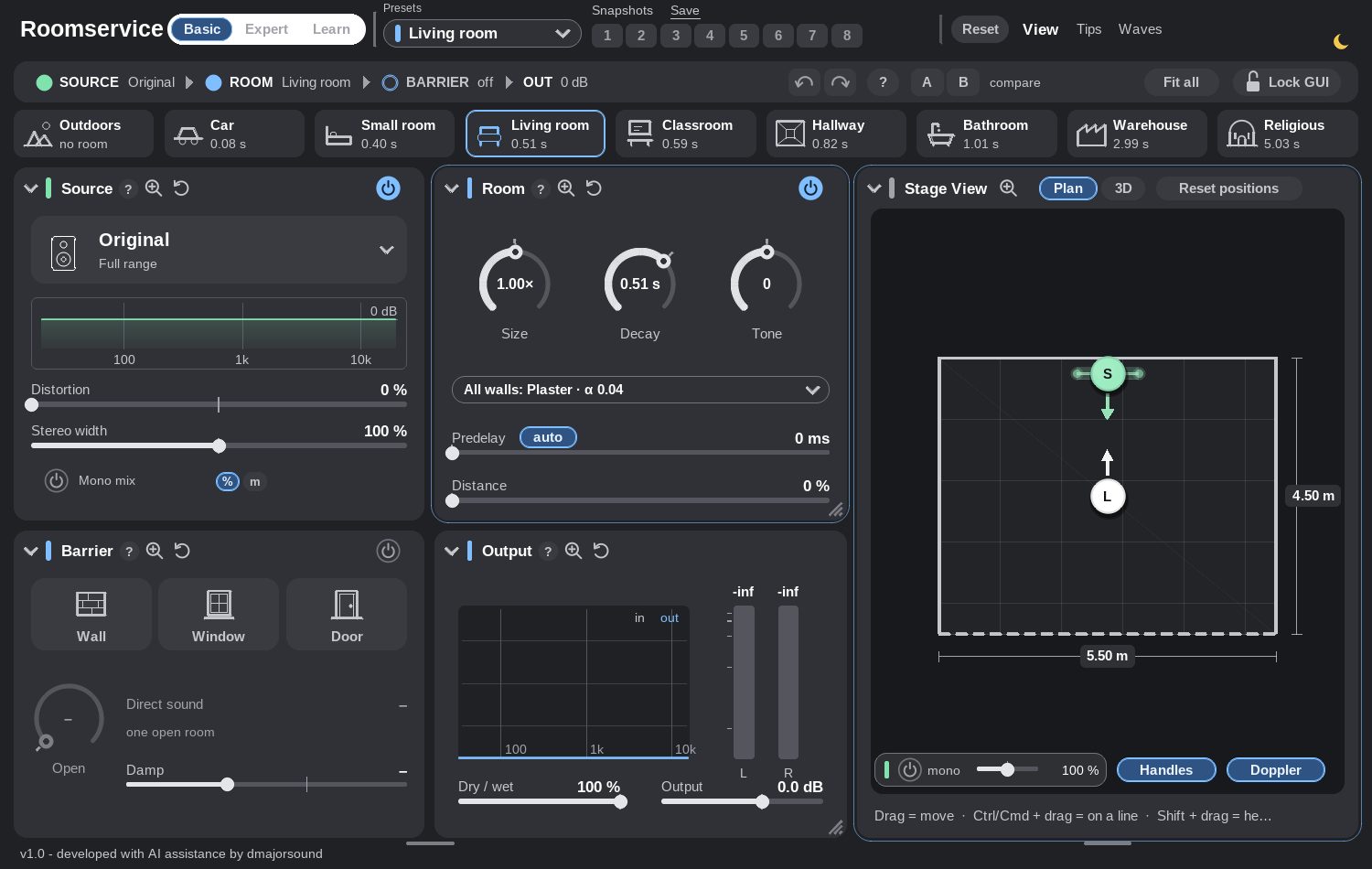
Basic
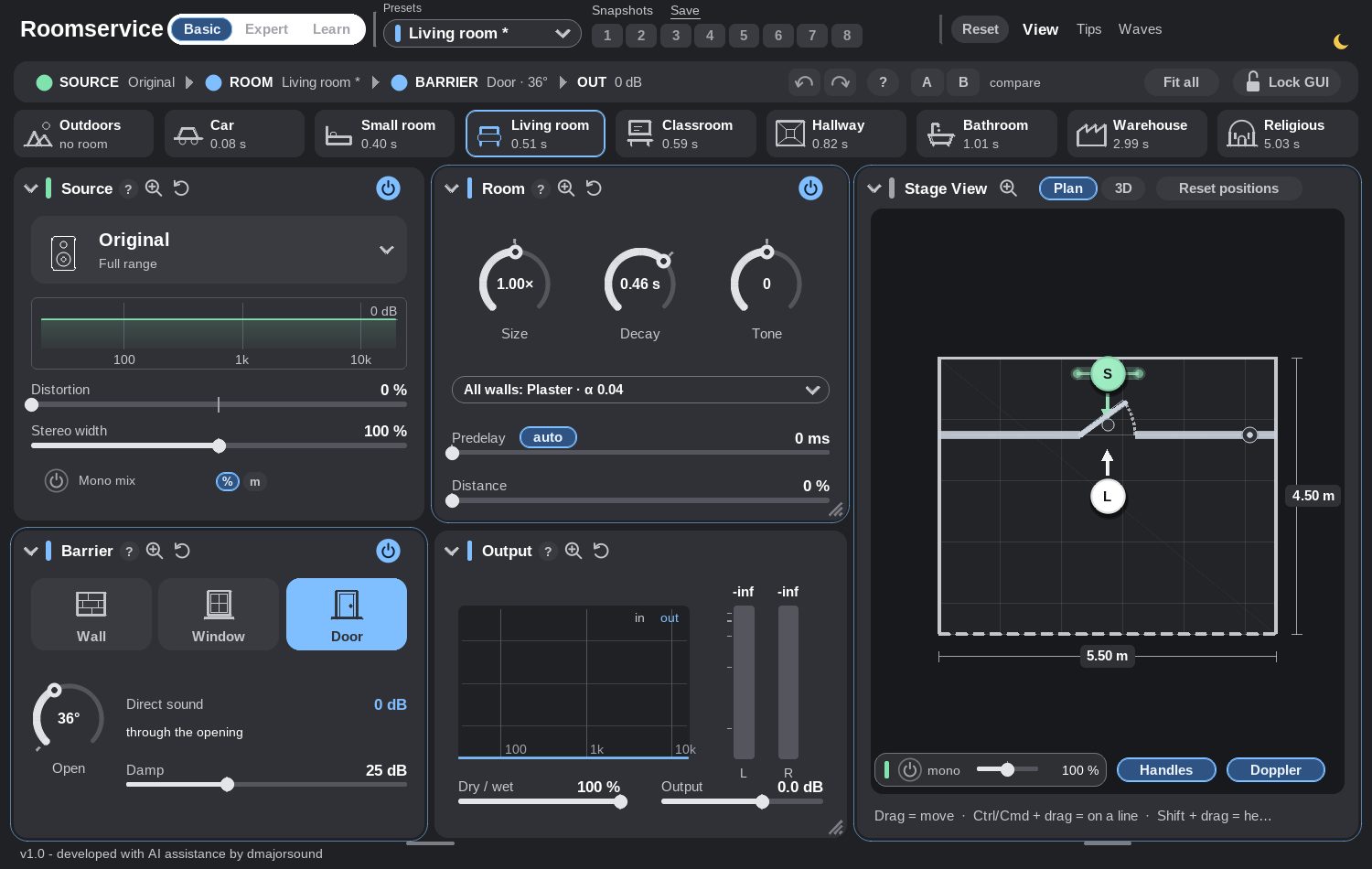
Four cards — Source, Room, Barrier, Output — with the Stage View beside them, and the film-location presets in the row above. Every card folds on its own; Alt+click on a fold arrow folds all four.
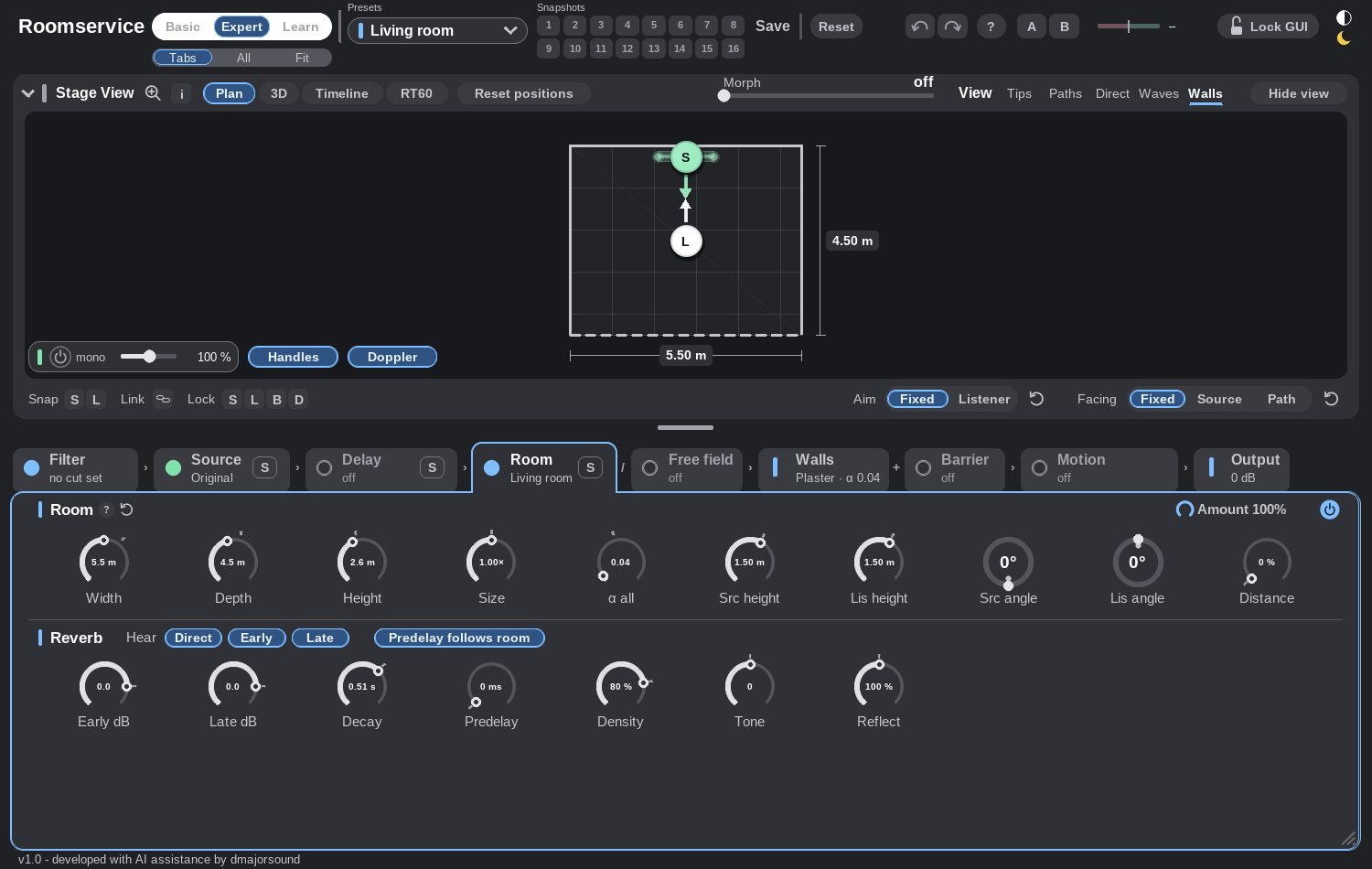
Expert
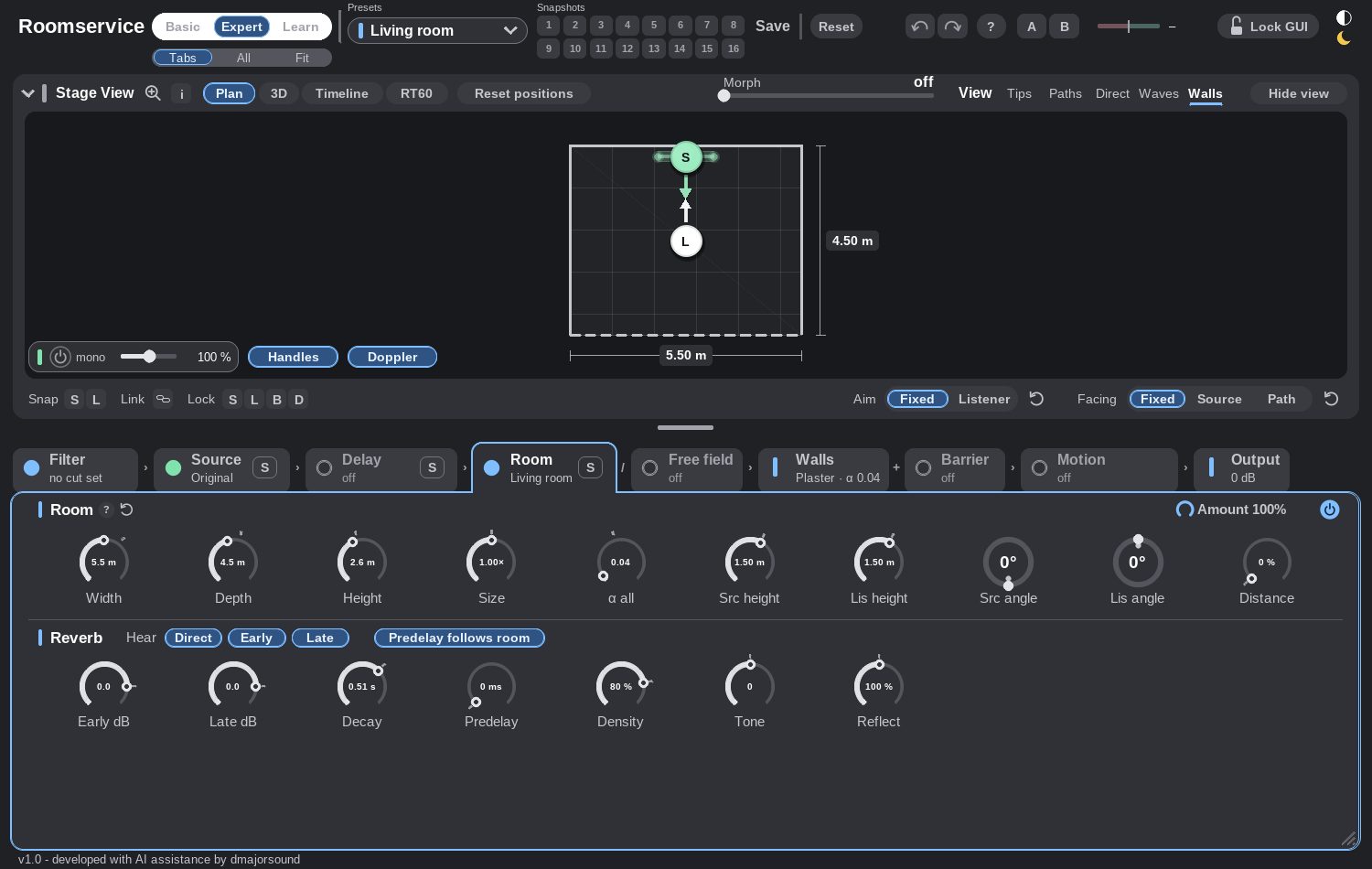
The Stage View on top, one module per tab underneath — or All, every module at once in two columns. Fit scales the page so the whole thing is in the window.
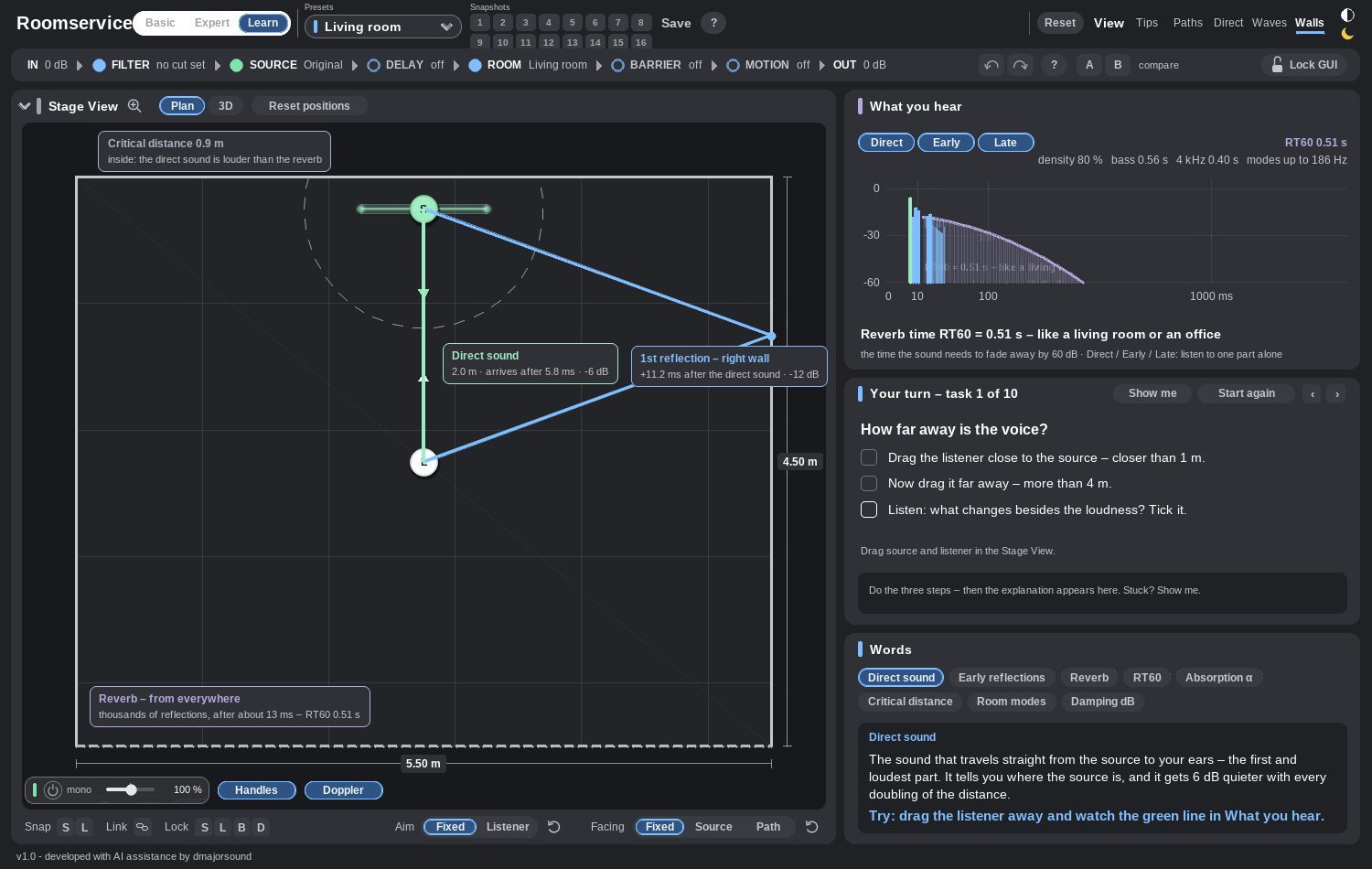
Learn
Ten listening tasks that explain what you hear: how far away a voice is, why a small room sounds boxy, hard walls against soft ones, what makes a room sound big, a voice behind a door, a phone call in a car, why a passing car changes its pitch, and how sound bends around a wall. The Stage View stays live while you work through them.
Stage View
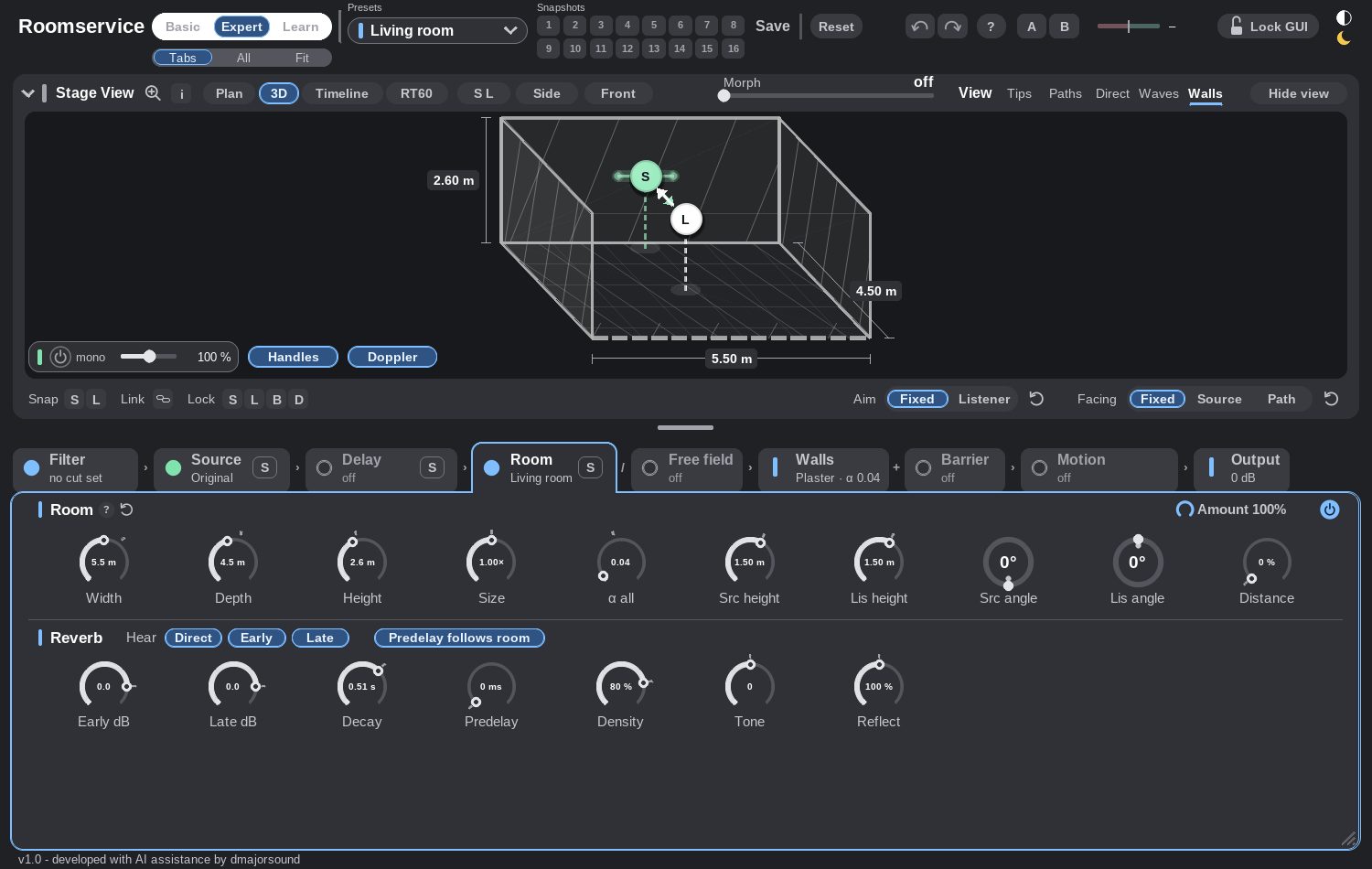
The map of the room. Source (green S) and listener (white L) are dragged here; the room is dragged by its edges and corners.
Moving things
- Drag a ball. Ctrl/Cmd+drag keeps one axis, Shift+drag (or the wheel over a ball) changes the height.
- Double-click a ball: back to the centre of the room.
- Drag an edge or the front corner to resize the room. Ctrl/Cmd scales it in proportion, Alt changes the height, Shift is the fine step.
Aim, Facing, zoom
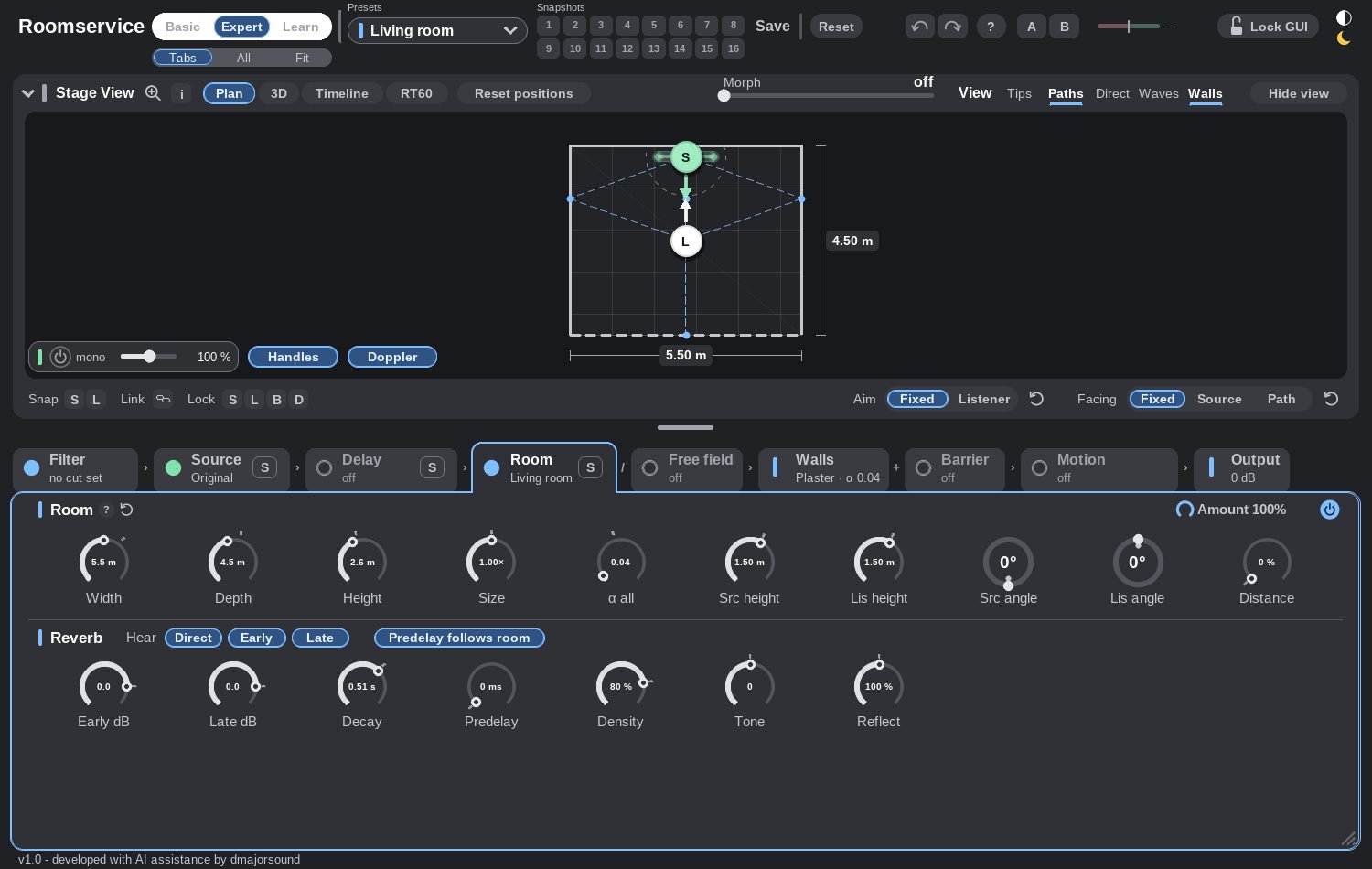
Aim is where the source points, Facing where the listener looks. The round arrow next to each resets it. The mouse wheel over the empty floor zooms from 10 % to 500 %; Fit puts the whole room — outdoors, the whole area with its reflectors — in view, and 1:1 goes back.

Stereo width and Doppler
The pill at the bottom left holds the mono mix, the stereo width, and two chips. Handles shows the two ends of the stereo span in the view: drag either end, Shift for the fine step, double-click for 100 % ↔ 0 %, Alt+click for 100 %, Ctrl/Cmd+click for 0 %. At 0 % a thin ring sits around the source — one channel.

Doppler on: dragging a ball glides the delays, a real pitch change while the sound moves. Off: only the distance changes — level, filter and room follow, the pitch stays put. Motion keeps its own Doppler setting, which this chip does not touch.
Overlays
Tips, Paths, Direct, Waves and Walls draw into the view: the reflection paths, the direct line with its distance, wavefronts spreading like ripples (slowed down by the factor the view states), and the absorption hatching.
Timeline and RT60
Signal chain

Filter
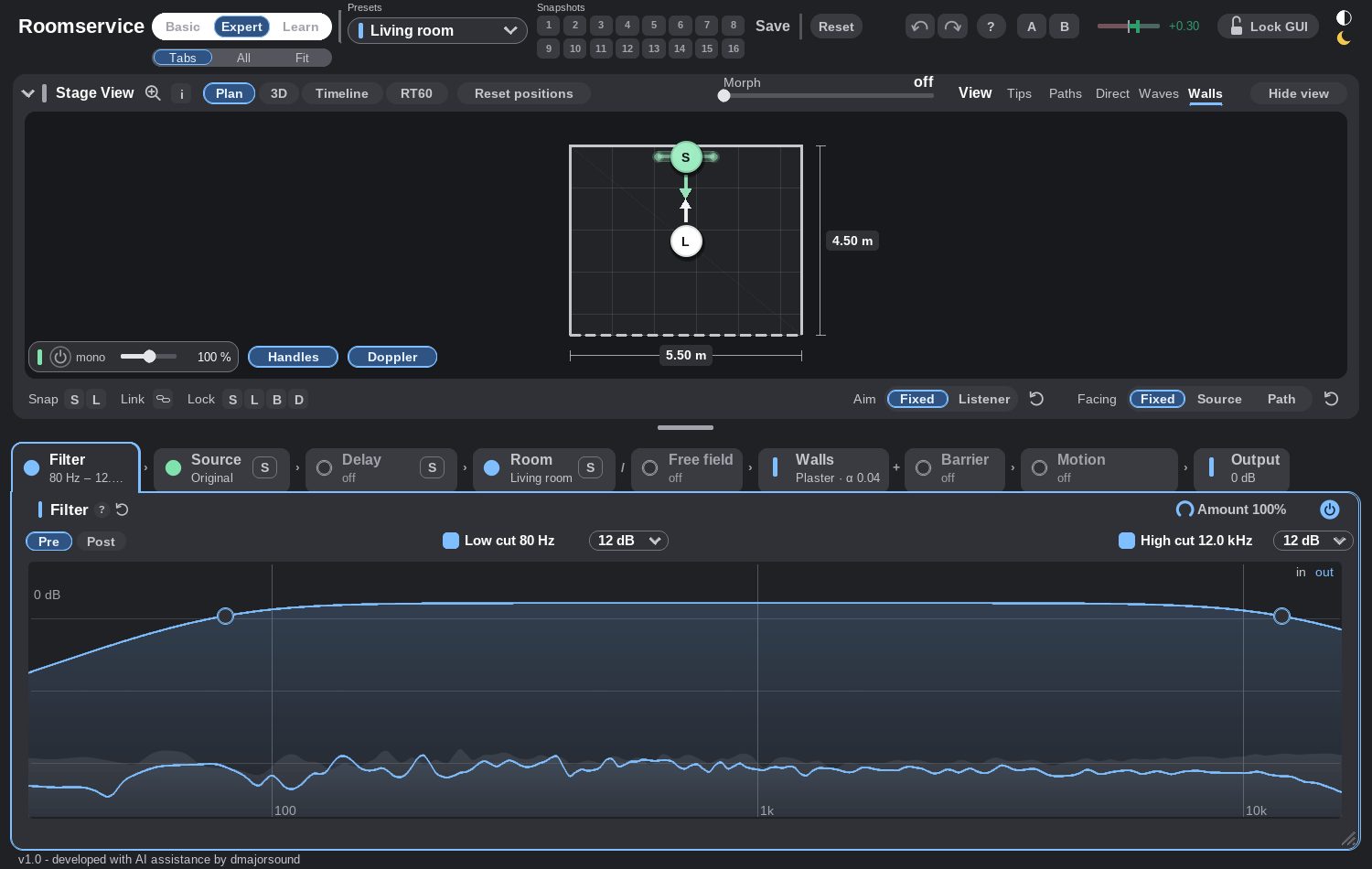
A low cut and a high cut on the way in, with a live spectrum. Pre/Post decides whether the filter sits before the room or after it.
Source
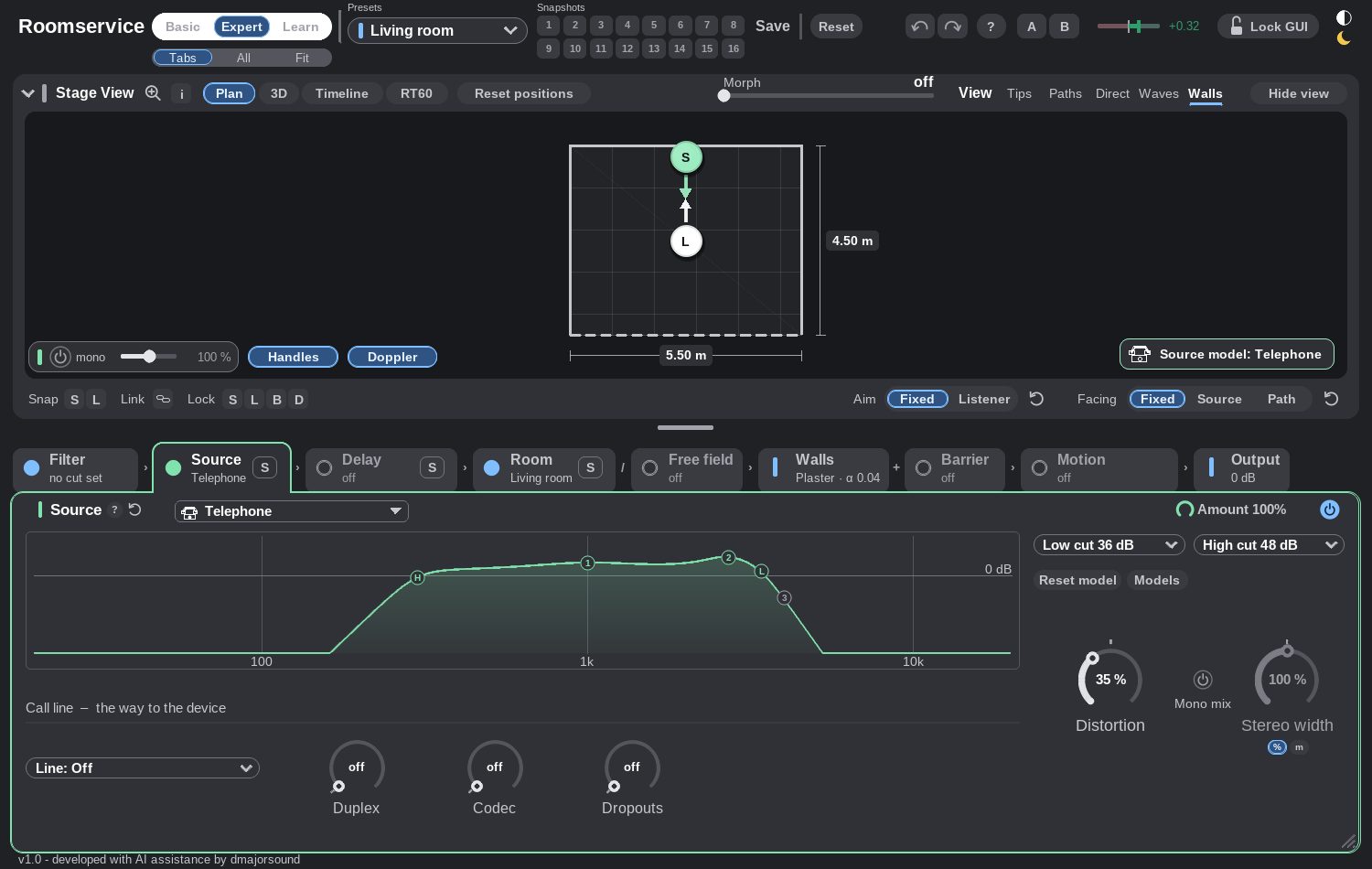
What kind of sound is standing in the room: Original, or one of twelve models — telephone, mobile phone, smartphone, walkie-talkie, radio, boombox, TV, laptop, tablet, mini speaker, headphones, megaphone. Each has its own band limit, distortion, squelch and codec behaviour. The call line adds duplex, codec artefacts, dropouts and the line bandwidth on top.
Delay
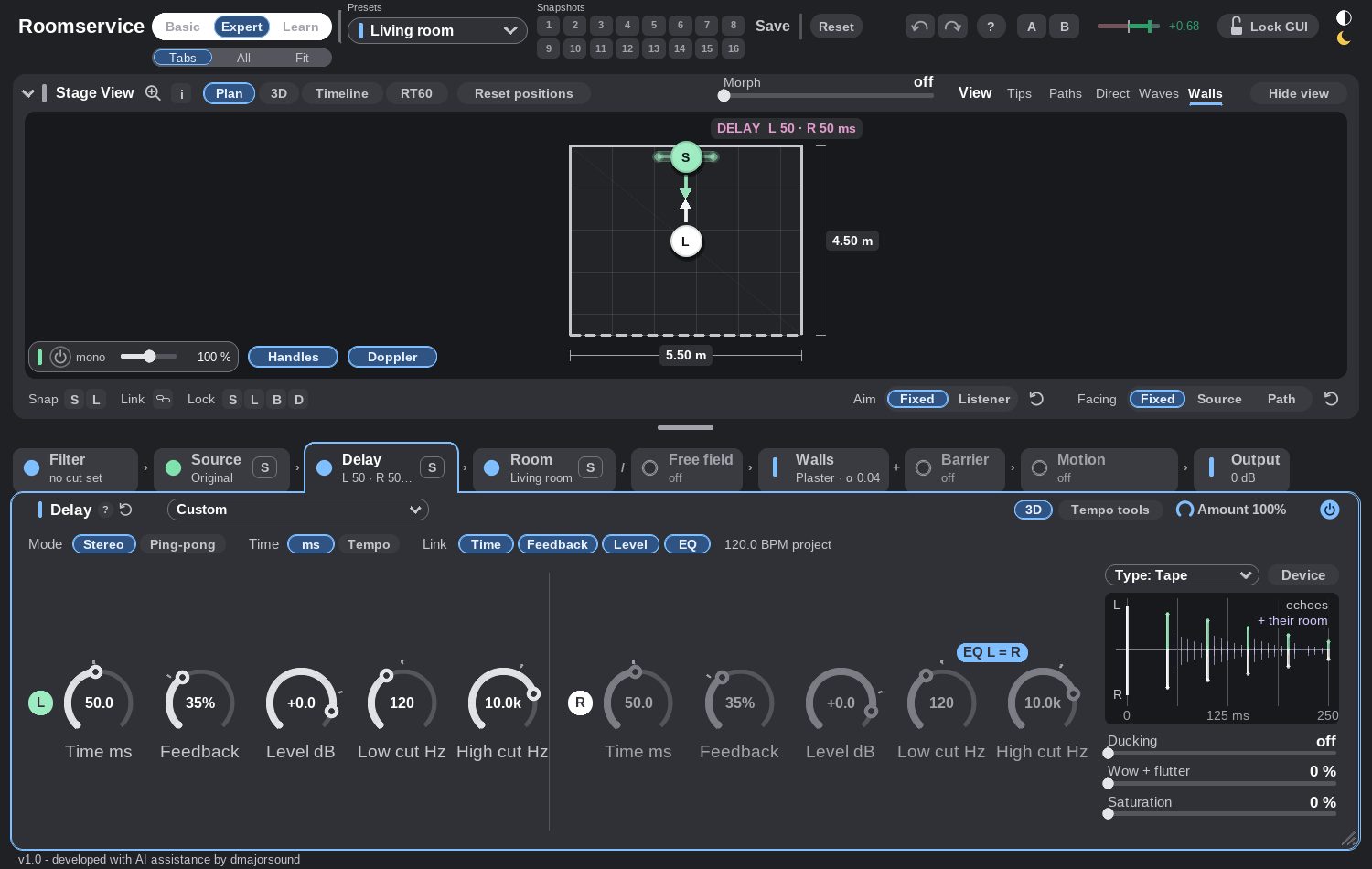
A delay before the room, in milliseconds or locked to the tempo: stereo or ping-pong, feedback, ducking, filter, and four characters — Clean, Tape, Analog, Lo-Fi.
Room and Reverb
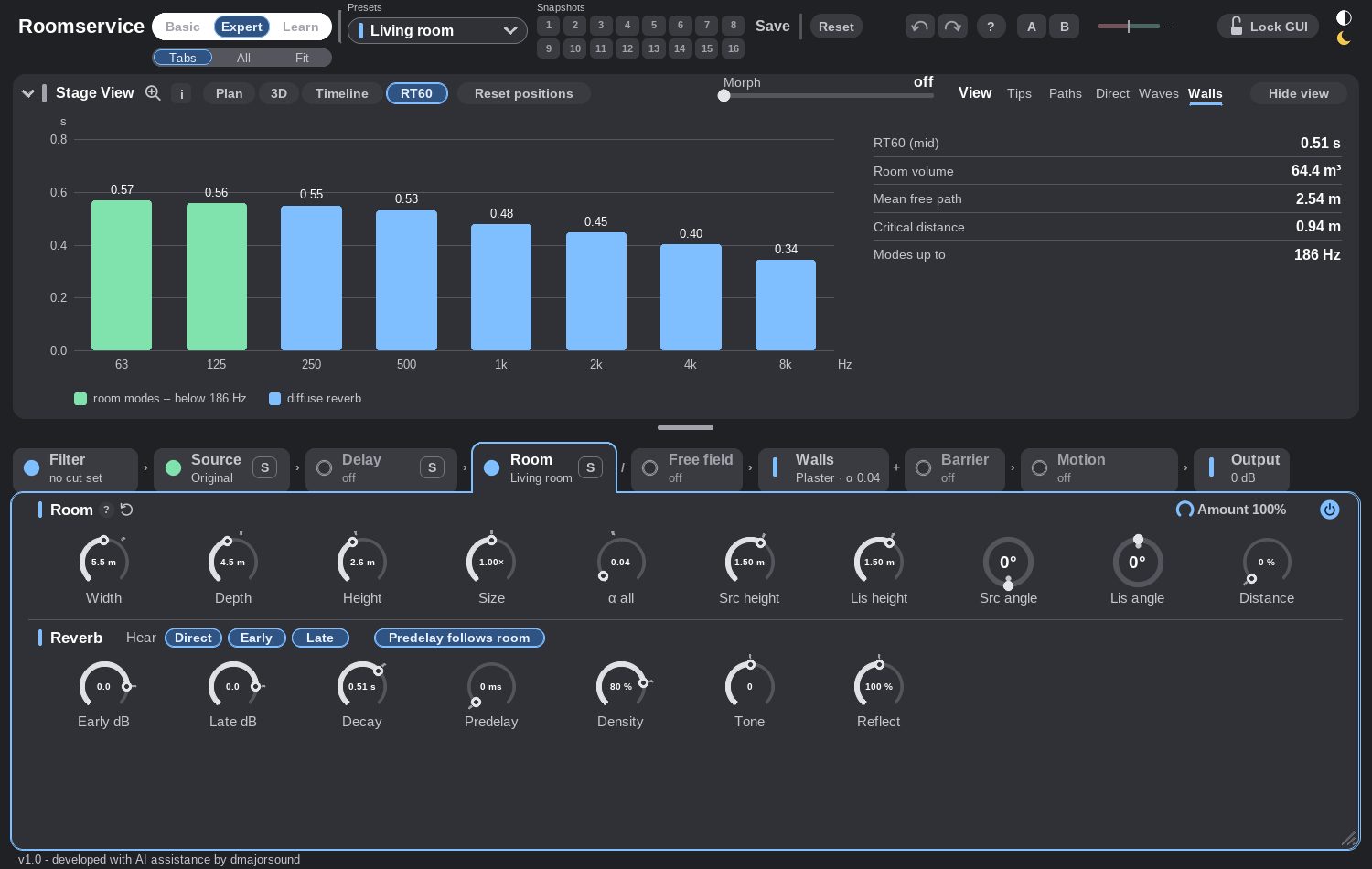
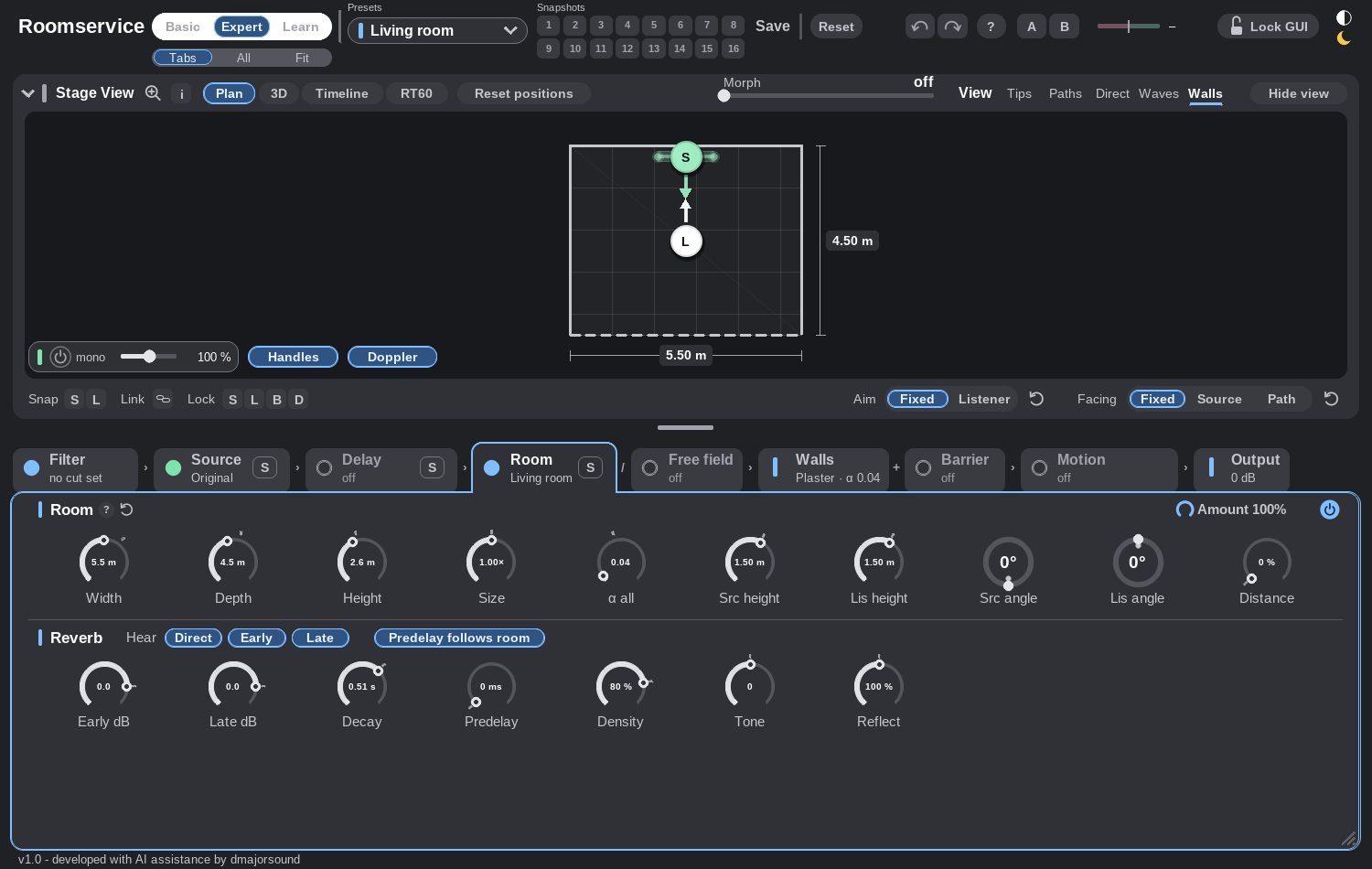
Width, depth and height in metres; Size scales the whole room and the positions in it. Early dB and Late dB balance the first reflections against the tail, Decay stretches or shortens the reverb time, Predelay can follow the room by itself. The status line states the two numbers that matter: the distance and the RT60.
Walls
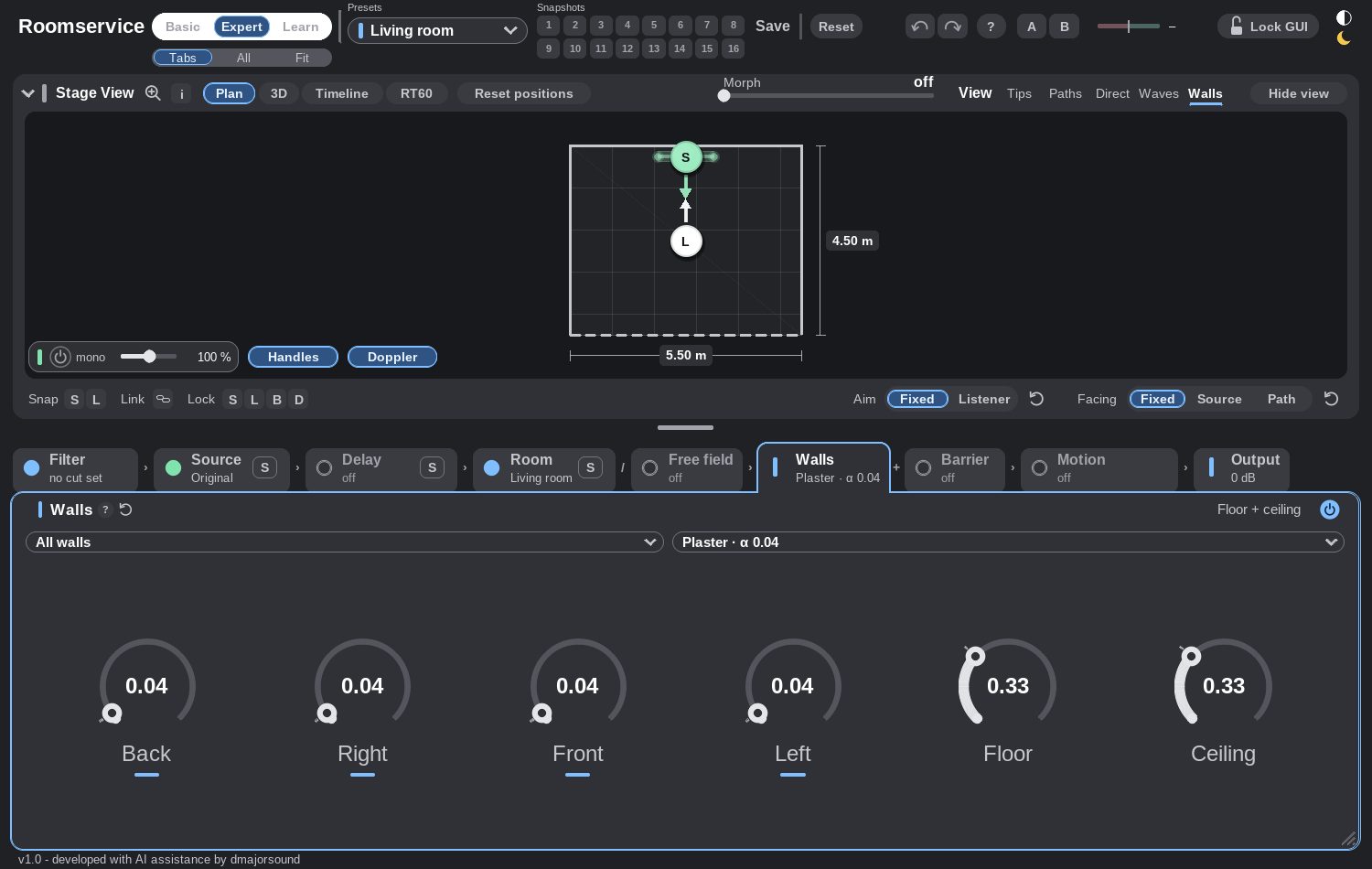
A material per surface — concrete, glass, metal, wood, curtain, foam, wool, tiles, plaster — or a free α value. The hatching in the Stage View shows how absorbent each wall is.
Barrier
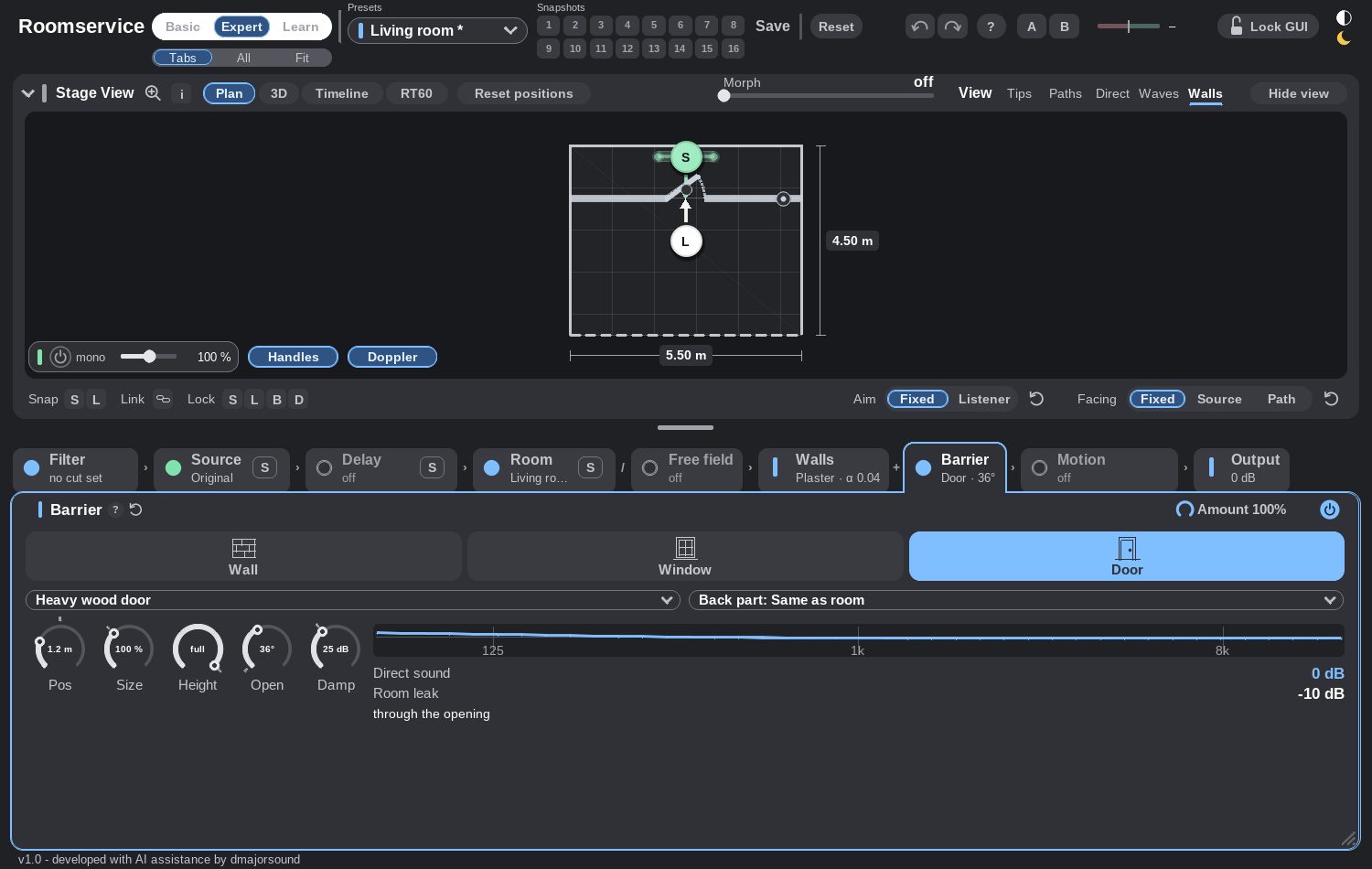
A wall, a window or a door between source and listener: position, element position, width, height, opening angle, and Damp — how many decibels the barrier takes off at 500 Hz. Sound reaches the listener through it, around it and through the opening; the module shows how much arrives by which route.
Motion
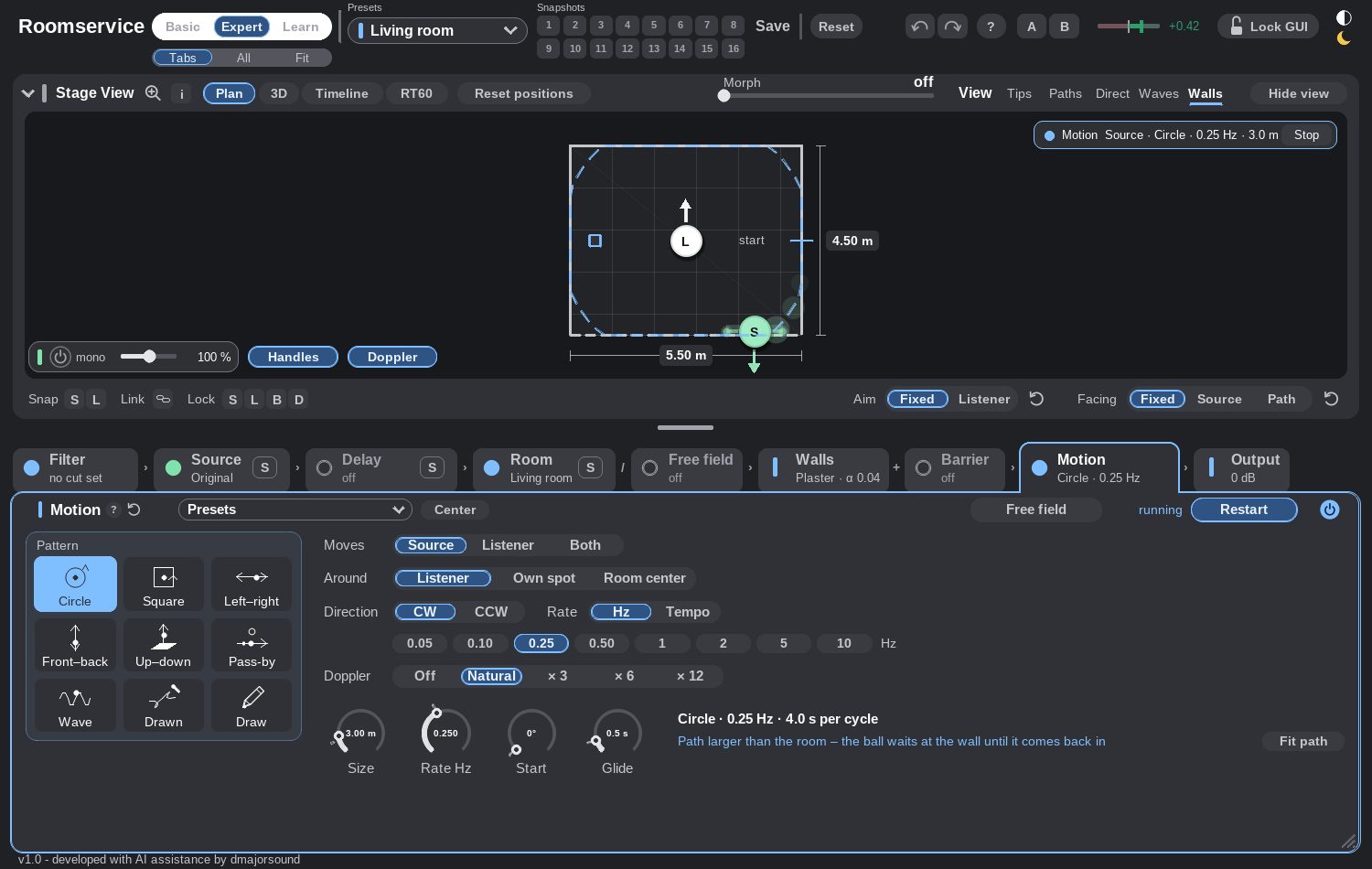
Moves source, listener or both along a pattern — circle, square, left–right, front–back, up–down, pass-by, wave, or a path you draw in the Stage View. Rate in hertz or locked to the tempo. Motion runs with REAPER's transport, so every playback and every render sounds the same.
Output
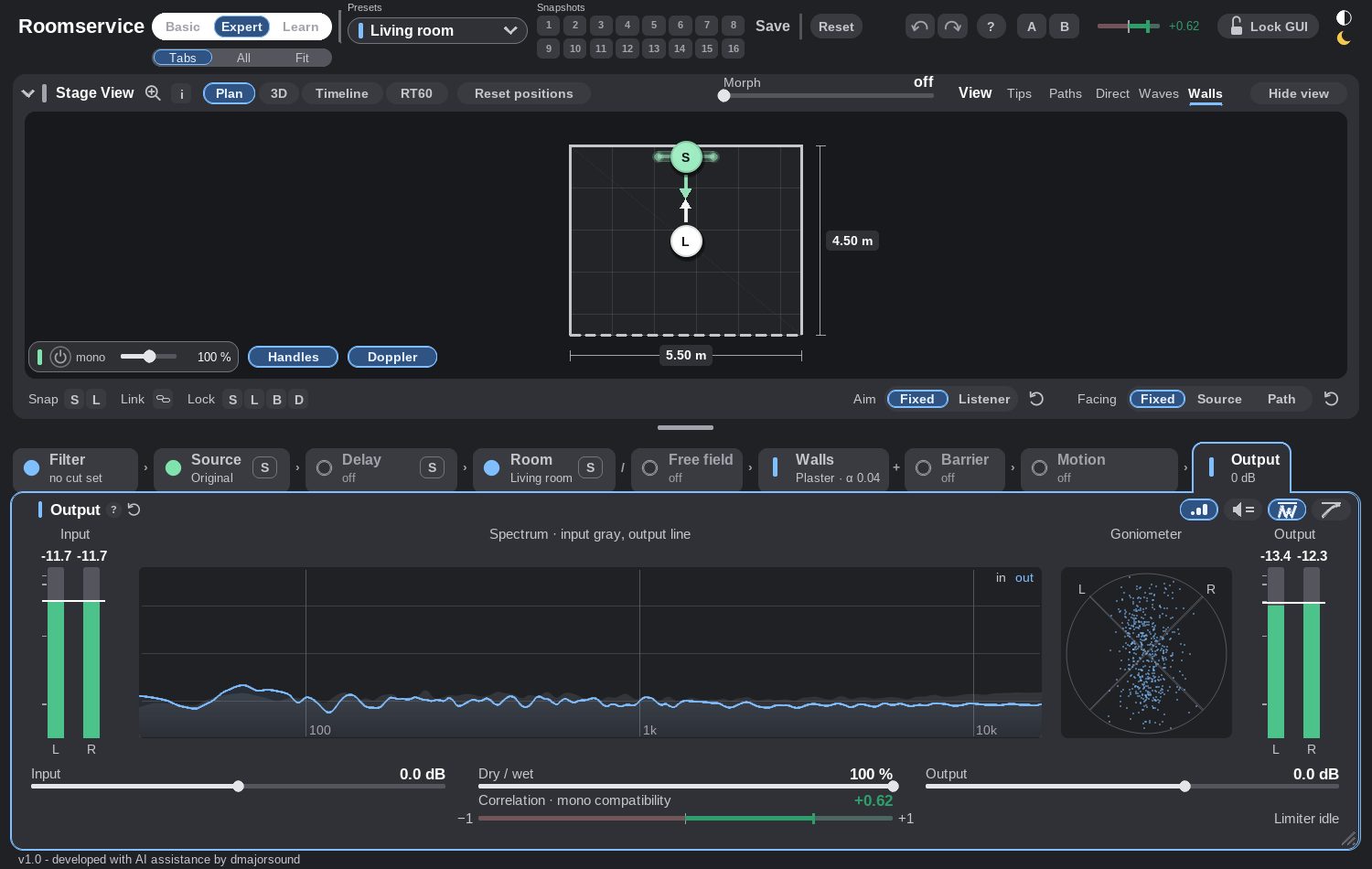
Input and output gain, dry/wet, the limiter, the meters and the correlation meter.
Free field
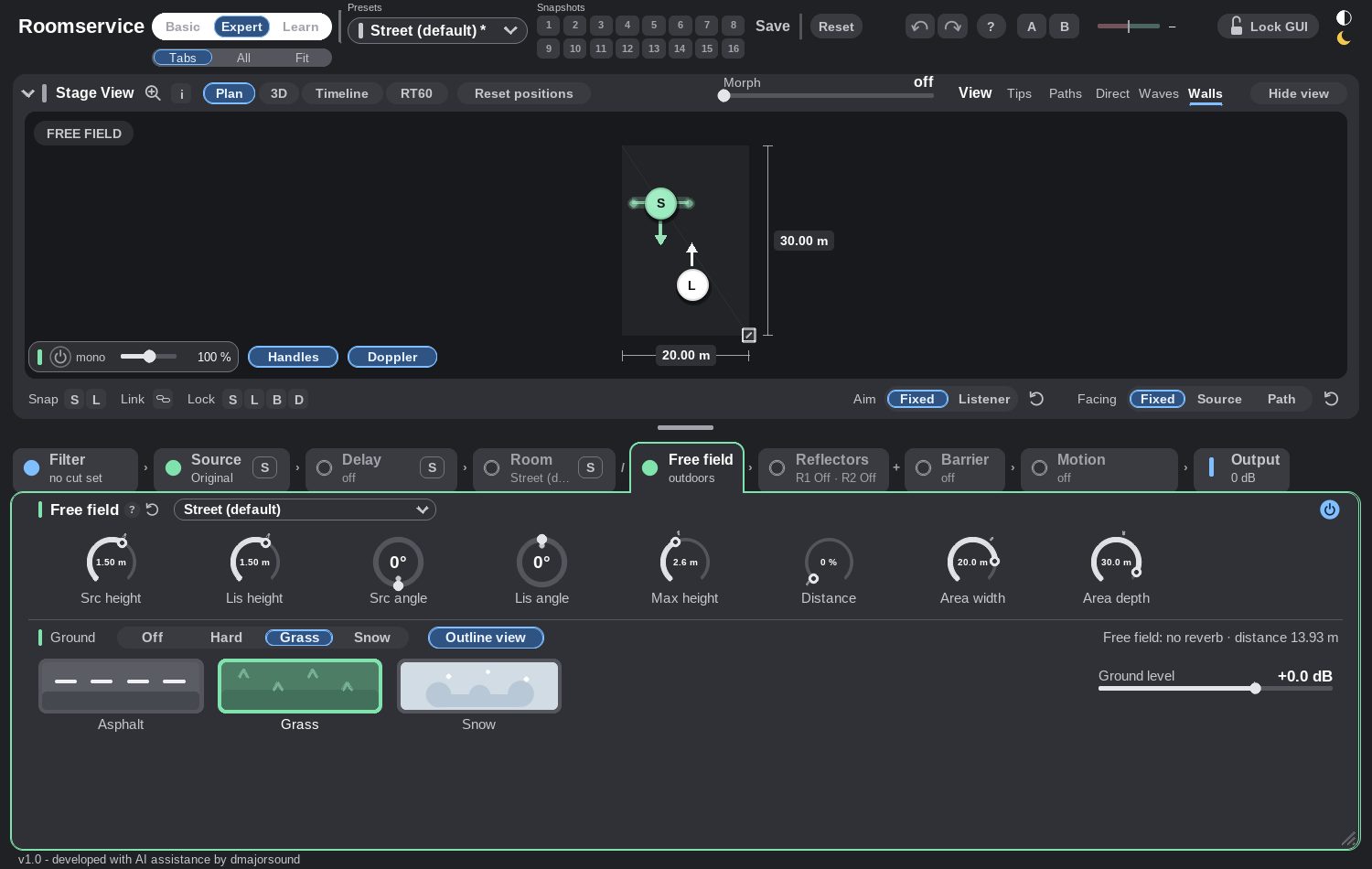
Free field switches the room off. What is left is what you have outdoors: the direct sound, the ground, and whatever stands around. Area width and Area depth are how far source and listener can move; Ground is Off, Hard, Grass or Snow, and its reflection arrives a moment after the direct sound and colours it.
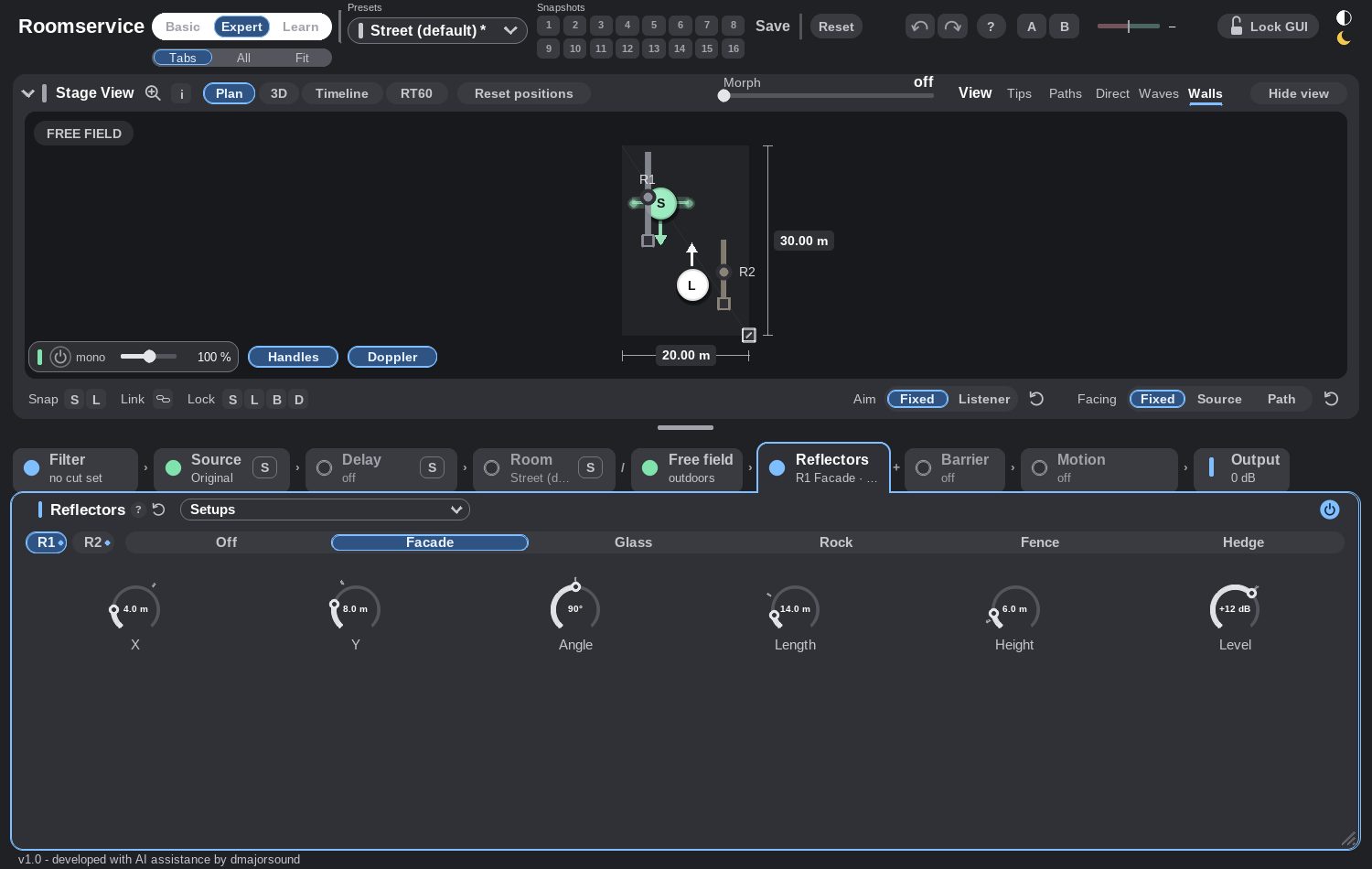
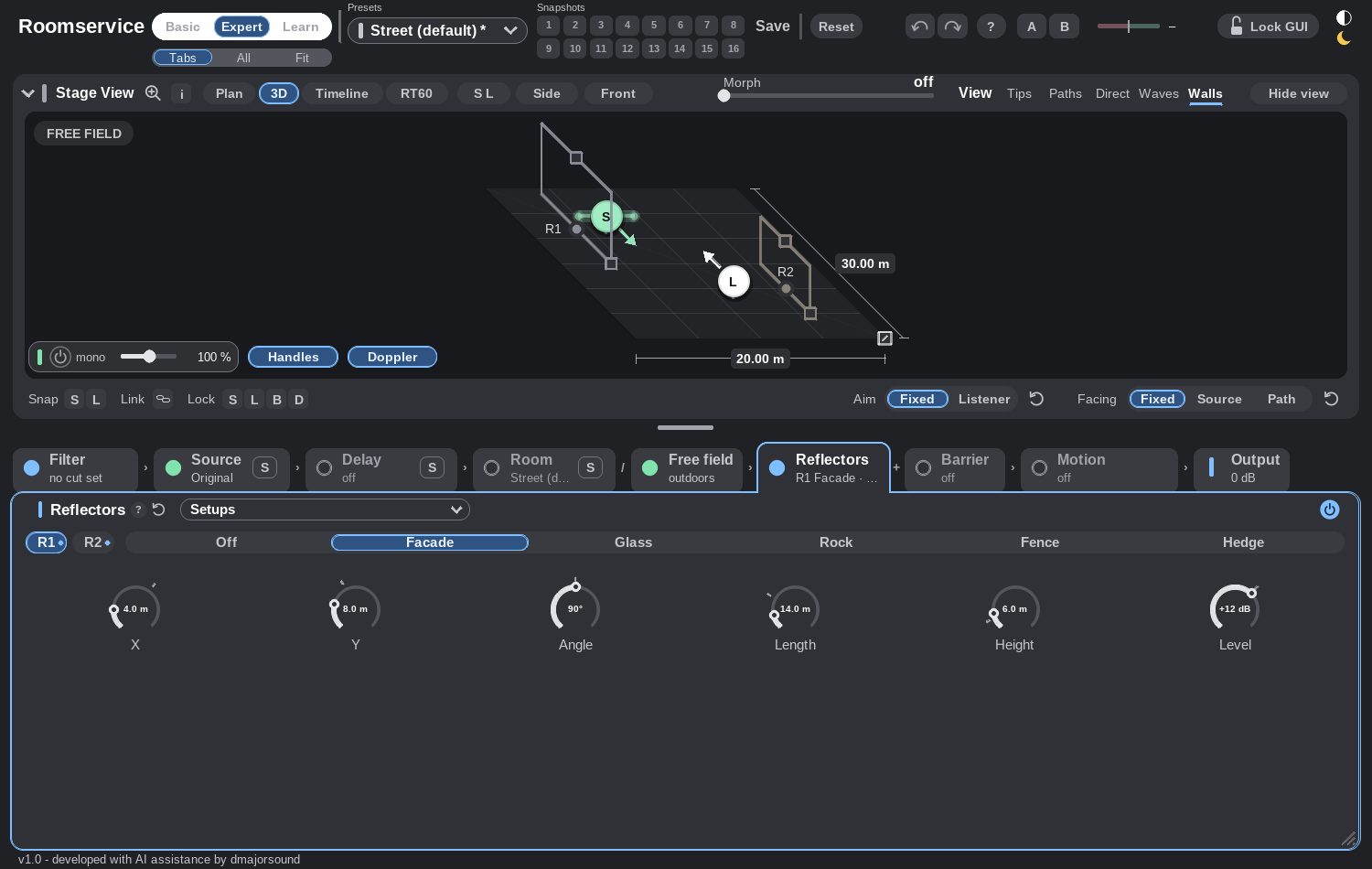
Reflectors R1 and R2 are two freely placed vertical planes — facade, glass, rock, fence or hedge. Each adds a real echo with the delay its distance gives it. Drag the dot or the panel to move it, Alt+drag turns it, the small square at the end of the panel sets its length and the one on the top edge its height. Setups offers practical arrangements: a street canyon, a facade opposite, a corner, a courtyard.
Presets, snapshots, automation
Room presets are typical rooms by category, My rooms are your own, kept on this computer. The search field finds everything: rooms, your own rooms, the film-location scenes and the free-field presets. Enter loads the first hit.
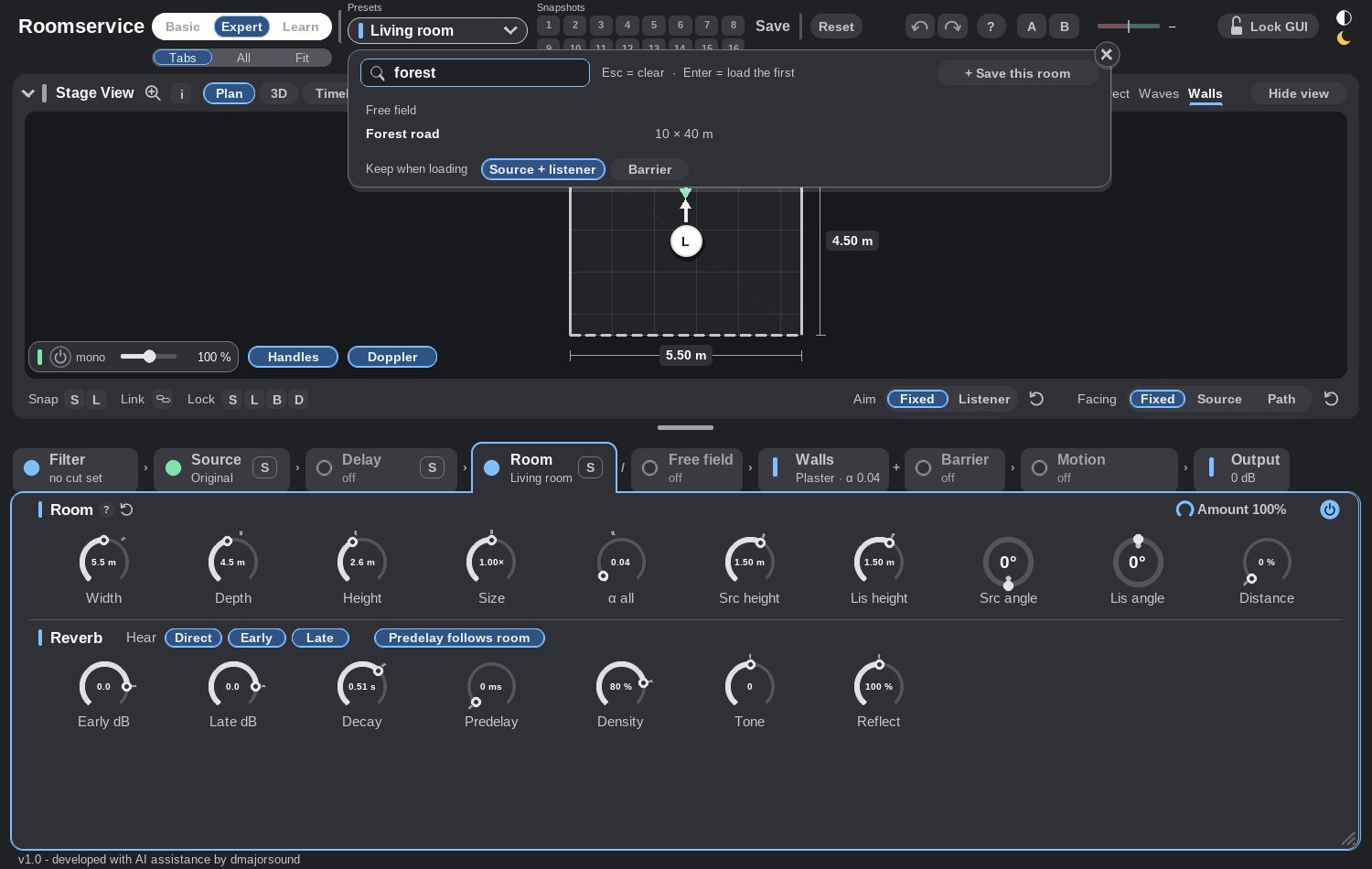
Snapshots 1 … 16 live in the project. Snapshot Morph blends between two of them and can be automated — a slow morph is a room that changes shape while the scene runs. A/B compares two states while you work; Match level plays both equally loud, so the comparison is about the sound and not the volume.

Every parameter is a REAPER parameter, the reflectors included — material, X, Y, angle, length, height and level of both, plus the on/off switch. Source and listener positions are parameters too, so a move you make by hand can be recorded in Write or Latch.
Keys
| Key | What it does |
|---|---|
| B / E / L | Basic / Expert / Learn |
| 1 … 9 | tabs (Tabs view) or snapshots |
| 0 | Tabs ↔ All |
| [ ] | previous / next tab |
| T / A / F | Tabs / All / Fit all |
| V | hide or show the Stage View |
| Z | zoom what is under the mouse (Stage View in every view) |
| H | stereo handles on / off |
| Ctrl/Cmd+Z | undo (Shift = redo) |
| Arrows | move the listener |
| Wheel on the floor | zoom the view, 10 % … 500 % |
| Esc | close zoom, menus, solo, help |
| ? | the help window |
Teaching with Roomservice
1 · Distance and loudness
Free field, ground off, Doppler off. Move the source from 1 m to 2 m to 4 m: each doubling costs 6 dB. Then switch the ground on — the same move now also changes the colour, because the ground reflection moves with it.
2 · What a room adds
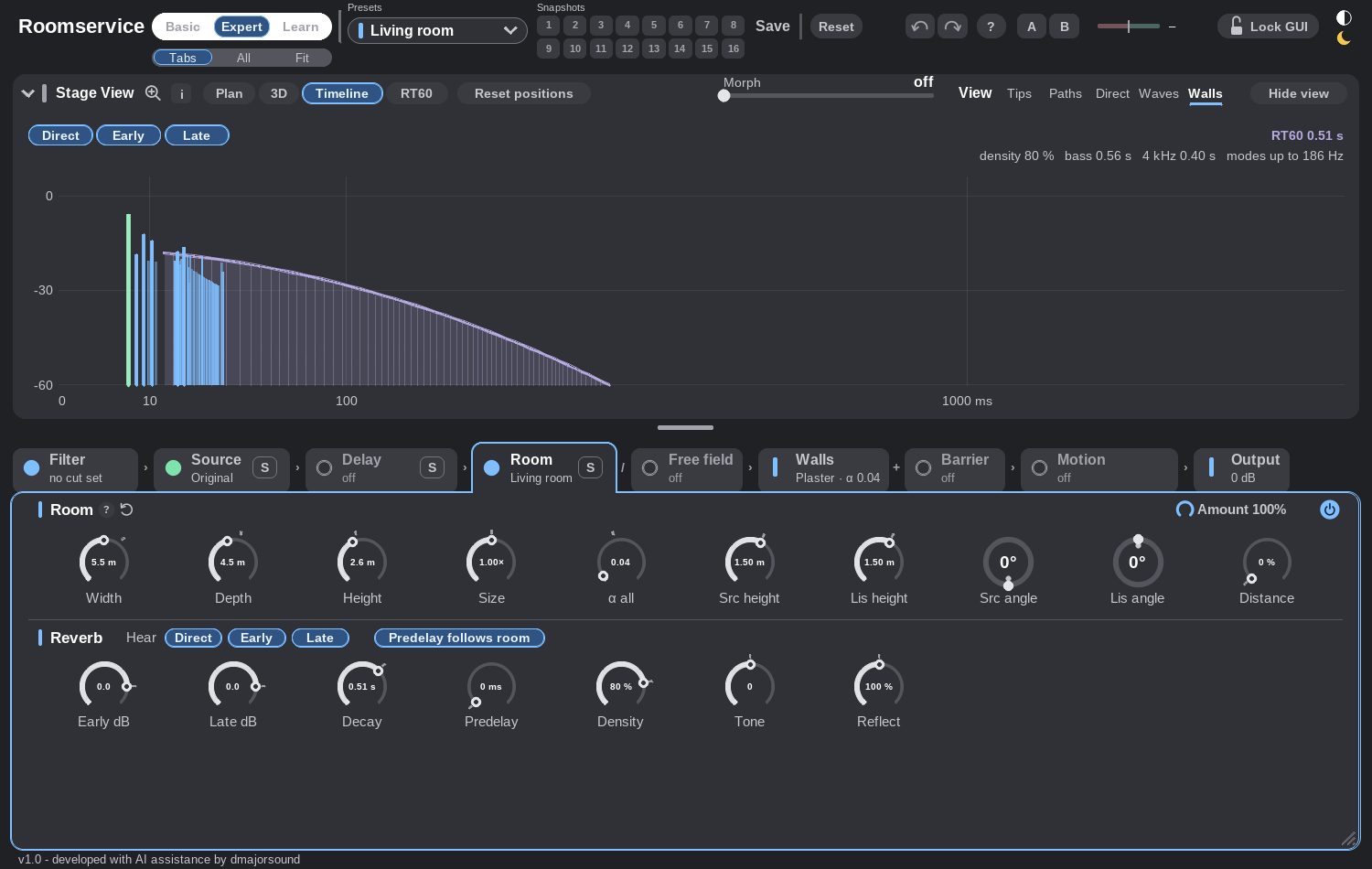
Room on. Solo the direct sound, then the early reflections, then the tail (the Hear buttons in the Reverb section). Timeline shows where each part sits in time, RT60 how long each octave band rings.
3 · Why dialogue through a door sounds like that
Barrier → Door, then open it from 0° to 90°. The module states how much arrives through the door, around it, and through the gap. Compare glass, a curtain and concrete on the walls.
Learn mode walks through all of this on its own, with ten tasks and a check for each.
Ein Raum, eine Quelle, ein Zuhörer. Roomservice stellt einen Ton an einen Ort und lässt dich hören, was dieser Ort mit ihm macht — den Direktschall, die ersten Reflexionen, die Fahne, eine Tür dazwischen, die offene Luft im Freien. Alles, was du einstellst, ist eine physikalische Größe: Meter, Grad, Dezibel, Sekunden.
Format JSFX (JS) für REAPER 7.x · Stereo rein, Stereo raus
Systeme macOS (Apple Silicon und Intel), Windows
Installation eine Datei kopieren — kein Installer, keine Abhängigkeiten
Installation
In REAPER Options → Show REAPER resource path öffnen, roomservice.jsfx in den Ordner Effects kopieren, dann auf einer Spur ein FX hinzufügen und Roomservice ins Suchfeld tippen. Der Eintrag heißt JS: Roomservice - by dmajorsound – der Name bleibt in jeder Version gleich, damit Automation weiter funktioniert.
Das Plugin meldet seine Latenz an REAPER, die Spuren bleiben also synchron. Renderings sind reproduzierbar: gleiche Einstellung, gleiches Audio, und jede Wiedergabe einer Bewegung beginnt an derselben Stelle.
Drei Ansichten
Die Schalter links oben schalten das ganze Fenster um. Jede Ansicht merkt sich ihr eigenes Layout.
Basic
Vier Karten — Source, Room, Barrier, Output — daneben die Stage View, darüber die Drehort-Presets. Jede Karte klappt für sich zu; Alt+Klick auf einen Pfeil klappt alle vier.
Expert
Die Stage View oben, darunter ein Modul pro Tab — oder All, alle Module auf einmal in zwei Spalten. Fit skaliert die Seite so, dass alles ins Fenster passt.
Learn
Zehn Hörübungen, die erklären, was man hört: wie weit eine Stimme entfernt ist, warum ein kleiner Raum schachtelig klingt, harte gegen weiche Wände, eine Stimme hinter der Tür, ein Telefonat im Auto, warum ein vorbeifahrendes Auto die Tonhöhe ändert und wie Schall um eine Wand herumgeht. Die Stage View bleibt dabei bedienbar.
Stage View
Die Karte des Raums. Source (grünes S) und Listener (weißes L) werden hier gezogen, der Raum an seinen Kanten und Ecken.
Bewegen
- Kugel ziehen. Ctrl/Cmd+Ziehen hält eine Achse, Shift+Ziehen (oder das Rad über einer Kugel) ändert die Höhe.
- Doppelklick auf eine Kugel: zurück in die Raummitte.
- Kante oder vordere Ecke ziehen ändert die Raumgröße. Ctrl/Cmd skaliert proportional, Alt die Höhe, Shift ist der Feinschritt.
Aim, Facing, Zoom
Aim ist, wohin die Quelle zeigt, Facing, wohin der Zuhörer schaut. Der runde Pfeil daneben setzt zurück. Das Mausrad über der freien Fläche zoomt von 10 % bis 500 %; Fit holt den ganzen Raum — draußen die ganze Area samt Reflektoren — ins Bild, 1:1 geht zurück.
Stereobreite und Doppler
Die Pille links unten enthält Mono-Mix, Stereobreite und zwei Chips. Handles zeigt die beiden Enden der Stereobreite in der Ansicht: ein Ende ziehen, Shift für den Feinschritt, Doppelklick für 100 % ↔ 0 %, Alt+Klick für 100 %, Ctrl/Cmd+Klick für 0 %. Bei 0 % liegt ein dünner Ring um die Quelle — ein Kanal.
Doppler an: Beim Ziehen gleiten die Verzögerungen mit, eine echte Tonhöhenänderung während der Bewegung. Aus: Nur die Distanz ändert sich — Pegel, Filter und Raum folgen, die Tonhöhe bleibt. Motion behält seine eigene Doppler-Einstellung, die dieser Chip nicht berührt.
Einblendungen
Tips, Paths, Direct, Waves und Walls zeichnen in die Ansicht: die Reflexionswege, die direkte Linie mit ihrer Distanz, Wellenfronten wie Ringe auf Wasser (um den angezeigten Faktor verlangsamt) und die Schraffur der Absorption.
Timeline und RT60
Signalkette
Filter
Ein Low Cut und ein High Cut am Eingang, mit Live-Spektrum. Pre/Post entscheidet, ob der Filter vor oder nach dem Raum sitzt.
Source
Was für ein Schallereignis im Raum steht: Original oder eines von zwölf Modellen — Telefon, Handy, Smartphone, Funkgerät, Radio, Boombox, TV, Laptop, Tablet, Mini-Lautsprecher, Kopfhörer, Megafon. Jedes hat eigene Bandbegrenzung, Verzerrung, Rauschsperre und Codec-Eigenheiten. Die Call line legt Duplex, Codec-Artefakte, Aussetzer und die Leitungsbandbreite darüber.
Delay
Ein Delay vor dem Raum, in Millisekunden oder zum Tempo: Stereo oder Ping-Pong, Feedback, Ducking, Filter und vier Charaktere — Clean, Tape, Analog, Lo-Fi.
Room und Reverb
Breite, Tiefe und Höhe in Metern; Size skaliert den ganzen Raum samt Positionen. Early dB und Late dB wiegen die frühen Reflexionen gegen die Fahne ab, Decay dehnt oder kürzt die Nachhallzeit, Predelay kann dem Raum von selbst folgen. Die Statuszeile nennt die beiden Zahlen, auf die es ankommt: Distanz und RT60.
Walls
Ein Material pro Fläche — Beton, Glas, Metall, Holz, Vorhang, Schaum, Wolle, Fliesen, Putz — oder ein freier α-Wert. Die Schraffur in der Stage View zeigt, wie stark jede Wand schluckt.
Barrier
Eine Wand, ein Fenster oder eine Tür zwischen Quelle und Zuhörer: Position, Position des Elements, Breite, Höhe, Öffnungswinkel und Damp — wie viele Dezibel die Barriere bei 500 Hz wegnimmt. Schall erreicht den Zuhörer hindurch, herum und durch die Öffnung; das Modul zeigt, wie viel auf welchem Weg ankommt.
Motion
Bewegt Quelle, Zuhörer oder beide auf einem Muster — Kreis, Quadrat, links–rechts, vorne–hinten, oben–unten, Vorbeifahrt, Welle oder ein Pfad, den du in der Stage View zeichnest. Rate in Hertz oder zum Tempo. Motion läuft mit REAPERs Transport, jede Wiedergabe und jedes Rendering klingt also gleich.
Output
Eingangs- und Ausgangspegel, Dry/Wet, Limiter, Meter und Korrelationsmesser.
Free field
Free field schaltet den Raum ab. Übrig bleibt, was man draußen hat: der Direktschall, der Boden und das, was herumsteht. Area width und Area depth sind der Bereich, in dem sich Quelle und Zuhörer bewegen können; Ground ist Off, Hard, Grass oder Snow, und seine Reflexion kommt kurz nach dem Direktschall und färbt ihn.
Reflektoren R1 und R2 sind zwei frei platzierte senkrechte Flächen — Fassade, Glas, Fels, Zaun oder Hecke. Jede fügt ein echtes Echo hinzu, mit der Verzögerung, die ihr Abstand ergibt. Punkt oder Fläche ziehen verschiebt sie, Alt+Ziehen dreht sie, das kleine Quadrat am Ende stellt die Länge ein, das an der Oberkante die Höhe. Setups bietet praxistaugliche Aufstellungen: Straßenschlucht, Fassade gegenüber, Ecke, Innenhof.
Presets, Snapshots, Automation
Room presets sind typische Räume nach Kategorien, My rooms deine eigenen, auf diesem Rechner gespeichert. Das Suchfeld findet alles: Räume, eigene Räume, die Drehort-Szenen und die Free-Field-Presets. Enter lädt den ersten Treffer.
Snapshots 1 … 16 liegen im Projekt. Snapshot Morph blendet zwischen zweien über und lässt sich automatisieren — ein langsamer Morph ist ein Raum, der während der Szene seine Form ändert. A/B vergleicht zwei Zustände während der Arbeit; Match level spielt beide gleich laut, damit der Vergleich über den Klang geht und nicht über die Lautstärke.
Jeder Parameter ist ein REAPER-Parameter, die Reflektoren eingeschlossen — Material, X, Y, Winkel, Länge, Höhe und Pegel von beiden, dazu der Ein/Aus-Schalter. Auch die Positionen von Quelle und Zuhörer sind Parameter, eine Bewegung von Hand lässt sich also in Write oder Latch aufzeichnen.
Tasten
| Taste | Wirkung |
|---|---|
| B / E / L | Basic / Expert / Learn |
| 1 … 9 | Tabs (Tabs-Ansicht) oder Snapshots |
| 0 | Tabs ↔ All |
| [ ] | vorheriger / nächster Tab |
| T / A / F | Tabs / All / Fit all |
| V | Stage View aus- oder einblenden |
| Z | zoomt, was unter der Maus ist (Stage View in jeder Ansicht) |
| H | Stereo-Handles ein / aus |
| Ctrl/Cmd+Z | Undo (Shift = Redo) |
| Pfeiltasten | bewegen den Zuhörer |
| Rad über der Fläche | zoomt die Ansicht, 10 % … 500 % |
| Esc | schließt Zoom, Menüs, Solo, Hilfe |
| ? | das Hilfefenster |
Unterrichten mit Roomservice
1 · Distanz und Lautstärke
Free field, Boden aus, Doppler aus. Die Quelle von 1 m auf 2 m auf 4 m schieben: Jede Verdopplung kostet 6 dB. Dann den Boden einschalten — dieselbe Bewegung ändert jetzt auch die Klangfarbe, weil die Bodenreflexion mitwandert.
2 · Was ein Raum hinzufügt
Raum an. Erst den Direktschall solo, dann die frühen Reflexionen, dann die Fahne (die Hear-Schalter im Reverb-Teil). Timeline zeigt, wo jeder Teil in der Zeit liegt, RT60, wie lange jedes Oktavband nachklingt.
3 · Warum Dialog durch eine Tür so klingt
Barrier → Door, dann von 0° auf 90° öffnen. Das Modul nennt, wie viel durch die Tür, wie viel herum und wie viel durch den Spalt kommt. Dazu Glas, Vorhang und Beton an den Wänden vergleichen.
Der Learn-Modus geht das von allein durch, mit zehn Aufgaben und einer Kontrolle für jede.